When you want to close a file quickly, click on the close icon in the document tab. You may also use the Close icon in the main tool bar, or the → (Ctrl-W) menu item.

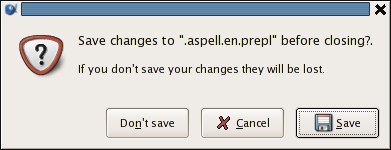
If the file is unchanged, it is merely closed. If the file has been modified, you will be presented with a save dialog.
![[Tip]](imgs/tip.png) | |
Use it to save and close a file in one step. |
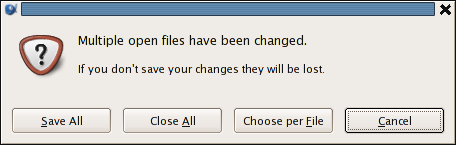
When dealing with multiple files, you may want to use the → (Shift-Ctrl-W) menu item.
For each modified file, you will be presented with a save dialog, where you can choose to save the changes, close the file (i.e. discarding any change), or cancel the operation.
| |
Say you have a number of open files, and only a few of them have been changed. To quickly close the unchanged files, and remain with the modified ones, use it answering cancel for the latter ones. |
Note that the → menu item offers the same behaviour.